
前言
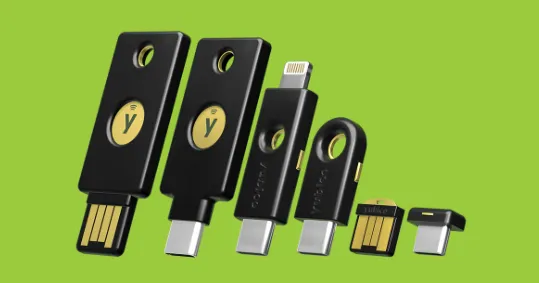
YubiKey 是一款由 Yubico 出品的硬件安全密钥,主要用于多因素认证(MFA)、密码管理、数字签名以及 SSH 身份验证等场景。它通过 USB、NFC 或 Lightning 接口与设备连接,可以生成一次性密码(OTP)、支持 FIDO2/WebAuthn、PIV(智能卡)以及 OpenPGP 等多种安全协议。YubiKey 的核心优势在于私钥永不离开硬件设备,即使电脑或网络被攻破,密钥仍然安全。
驻留密钥(Resident Key, RK)是 YubiKey 和 OpenSSH 中的一项功能,允许将 SSH 私钥直接存储在硬件设备内部,而不是依赖本地文件系统。与传统的 SSH 私钥文件不同,驻留密钥具备以下特点:
- 便携性:密钥随 YubiKey 携带,无需在每台设备上复制私钥。
- 安全性:私钥不会离开硬件设备,即使设备被接入不可信计算机,也无法导出密钥。
- 便捷性:支持在陌生设备上即插即用,通过硬件认证即可完成 SSH 登录,无需额外传输私钥。
- 多密钥管理:同一个 YubiKey 可存储多个 SSH 驻留密钥,并通过用户名或服务器标识选择使用。
重要
问题背景 传统 SSH 密钥需要提前保存在本地设备中,与具体电脑绑定。一旦身边没有自己的常用电脑,需要在临时设备上使用 SSH 密钥登录服务器就会非常麻烦。
提示
解决方案 通过 YubiKey 驻留密钥将 SSH 私钥直接储存在硬件密钥内部,随身携带 YubiKey 即可在任意兼容设备上导出句柄完成认证,也能避免误删或泄露本地私钥文件。
准备环境
从 macOS 12 开始,系统自带的 OpenSSH 已经具备驻留密钥支持;但不幸的是,苹果在编译系统 OpenSSH 时添加了 --disable-security-key 参数,禁用了安全密钥功能。如果在 macOS 12 上自行重新编译替换 OpenSSH,又会破坏与 iCloud 钥匙串的集成,因此不再考虑该方案。幸运的是,在社区持续反馈之后,苹果在 macOS Sonoma 中重新放开了安全密钥支持,只是没有内置中间件。本文方案基于此实现,仅适用于 macOS Sonoma(14.0)及以上版本。
根据社区的讨论,在 macOS Sonoma 及更高版本的系统 OpenSSH 中,只需自行编译提供 SSH_SK_PROVIDER 动态库即可启用硬件安全密钥。
可以使用如下脚本完成编译与环境配置,脚本来自 GitHub Gist:
#!/bin/bash

################################################################################################
# macskeyinstaller.sh
# Last Updated: January 13, 2025
#
# macOS OpenSSH Client Patcher for Hardware Security Key Support (ED25519-SK With YubiKey Etc.)
# Check out https://gist.github.com/BertanT/9d222da115ca2d1274ef34735c4260cf for details!
#
# Copyright 2025 Mehmet Bertan Tarakcioglu (github.com/BertanT), under the MIT License.
################################################################################################

# Exit early if there is an error
set -e

printf "\n* Hello! This script compiles and installs the security key provider for the built-in macOS Open SSH client to enable support for hardware security keys (such as a YubiKey)."

# Check if the script is running as root
if [ "$(id -u)" -eq 0 ]; then
  printf "\n!!! Error: For safety reasons, this script cannot be run as root. If using sudo, please try again without it.\n" >&2
  exit 1
fi

# Function to compare macOS version strings
version_ge() {
  [[ "$(echo -e "$1\n$2" | sort -V | head -n1)" == "$2" ]]
}

# function to get the current macOS Version
macos_version=$(sw_vers -productVersion | cut -d '.' -f1,2)

# Check if running at least macOS Sonoma
if ! version_ge "$macos_version" "14.0"; then
  printf "\n!!! Error: macOS version is $macos_version. This script requires at least macOS Sonoma (14.0).\n" >&2
  exit 1
fi
printf "\n* macOS version is supported!"

# Check if Homebrew is installed
if ! which brew &>/dev/null; then
  printf "\n!!! Error: This script requires Homebrew to install dependencies! Please install Homebrew and try again\n" >&2
  exit 1
fi
printf "\n* Homebrew is installed!"

printf "\n* Cloning the latest main branch of openssh-portable from GitHub. This may take a while..."
git clone --quiet https://github.com/openssh/openssh-portable.git
cd openssh-portable

printf "\n* Installing dependencies from Homebrew: libfido2, openssl, autoconf, automake, libtool\n"
brew install libfido2 openssl autoconf automake libtool pkgconf

printf "\n* Generating configuration script."
autoreconf -i

printf "\n* Exporting flags."

# Determine the CPU architecture and set the appropriate Homebrew base path
if [[ "$(uname -m)" == "arm64" ]]; then
  BREW_PREFIX="/opt/homebrew"
elif [[ "$(uname -m)" == "x86_64" ]]; then
  BREW_PREFIX="/usr/local"
else
  echo "!!! Error: Unknown CPU architecture $(uname -m).\n" >&2
  exit 1
fi

# Get the appropriate paths for the Homebrew dependecies as they differ through version
BREW_OPENSSL_PATH=$(ls -d $BREW_PREFIX/Cellar/openssl@3/*)
BREW_LIBFIDO2_PATH=$(ls -d $BREW_PREFIX/Cellar/libfido2/*)
export CFLAGS="-L$BREW_OPENSSL_PATH/lib -I$BREW_OPENSSL_PATH/include -L$BREW_LIBFIDO2_PATH/lib -I$BREW_LIBFIDO2_PATH/include -Wno-error=implicit-function-declaration"
export LDFLAGS="-L$BREW_OPENSSL_PATH/lib -L$BREW_LIBFIDO2_PATH/lib"

printf "\n* Configuring build. This may take a while..."
./configure --quiet --with-security-key-standalone

printf "\n* Cleaning previous build for good measure."
make --quiet clean

printf "\n* Building OpenSSH Portable."
make --quiet

printf "\n* Copying the Security Key Provider library to /usr/local/lib."
printf "\n  We need root privileges to modify system files.\n"
sudo mkdir -p /usr/local/lib
sudo mv sk-libfido2.dylib /usr/local/lib/

# Check if the script is running in ZSH. If not, give the user instructions.
# Otherwise, modify .zshenv to set the environment variable if not already present.
if [[ "$SHELL" == *zsh* ]]; then
    printf "\n* Configuring the ~/.zshenv for the System SSH use the Security Key Provider we just built"
    if ! grep -q "export SSH_SK_PROVIDER=/usr/local/lib/sk-libfido2.dylib" "$HOME/.zshenv" &>/dev/null; then
        echo "export SSH_SK_PROVIDER=/usr/local/lib/sk-libfido2.dylib" >> "$HOME/.zshenv"
        printf "\n* Added SSH_SK_PROVIDER to ~/.zshenv."
    else
        printf "\n* SSH_SK_PROVIDER is already configured in ~/.zshenv."
    fi
else
    printf "*\n Since you are not on ZSH, you will need to manually configure your shell profile to tell the System SSH client to use the Security Key Provider we just built."
    printf "\n  The shell profile should export the environment variable as follows:"
    printf "\n  export SSH_SK_PROVIDER=/usr/local/lib/sk-libfido2.dylib"
fi

printf "\n* Exiting the directory and deleting the repository we cloned. We don't need it anymore"
cd ..
rm -rf openssh-portable

printf "\n\n* That's it! After restarting your terminal session, you can plug in your hardware security key and test the installation using:"
printf "\n  ssh-keygen -t ed25519-sk -O resident -O verify-required -C \"Your Comment\""
printf "\n\nHave a nice day! :)\n\n"
YubiKey 配置
生成驻留密钥
创建 SSH 驻留密钥(Resident Key)非常简单,只需要在生成密钥时添加 -O resident 选项:
ssh-keygen \
  -t ed25519-sk \
  -O resident \
  -O verify-required
参数说明
-t ed25519-sk:指定密钥类型为支持硬件安全密钥的 Ed25519-SK-O resident:将私钥存储在 YubiKey 内部(驻留密钥)-O verify-required:每次使用时需要验证 PIN 码
之后按照提示输入 PIN 码并触碰金属触点即可完成创建。
从 YubiKey 导出驻留密钥句柄
在新设备上使用驻留密钥也很简单,只需要执行:
ssh-keygen -K即可从 YubiKey 中导出驻留密钥对应的本地密钥句柄与公钥文件。
之后把导出的文件移动到 ~/.ssh/ 目录下(如保留默认文件名 id_ed25519_sk_rk 并在 ~/.ssh/config 中指定,或重命名为默认的 id_ed25519_sk),即可在 SSH 登录时直接调用硬件认证。
到此配置完成,从此告别到处拷贝私钥的烦恼,enjoy it!